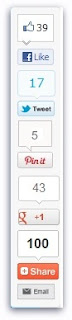
 Hi Guys today i am going share with you how to add floating bar comprising on google +1, pinterest, facebook like and other sharing button.Because Social Media is a non-stoppable engine, which if driven correctly and carefully can bring tons of valuable traffic each visitor worth a dollar.You have seen many floating sharing count buttons on popular blogs.But you don't like here we design specially for you.
This floating bar perfectly well on most browser.This floating bar will appear at the left hand side and move up and down as readers scroll up and down.This widget was created by applying both CSS and jQuery effect.This widget is perfect for everyone i also used.Floating bar widget contain counters of important social networking sites that give potential to bring you traffic by circulating your content to a large audience.
This widget perform a great roll on spreading/sharing your post which will help you to drag real traffic.So only you have to follow these simple steps to add on your Blog
Steps Add Floating Bar To Blogger
- Go to Blogger > Template
- Befor Edit HTML Backup your template
- Then Click on Edit HTML
- Click on Proceed
- Then Click Expand Widget Templates
- Search for this code
<b:includable id='post' var='post'>
Paste the code below immediately after/below it.
<b:if cond='data:blog.pageType == "item"'>
<b:if cond='data:blog.pageType != "static_page"'>
<style>
.mbt_social_floating{
position:fixed; bottom:10%; margin-left:-60px; float:left; width:60px;
background-color:#f7f7f7; padding: 5px 0 0px 0px;
border-top:1px solid #ddd;
border-left:1px solid #ddd;
border-bottom:1px solid #ddd;
z-index:9999px !important;
border-radius:5px;-moz-border-radius:5px;-webkit-border-radius:5px;
}
.mbt_social_floating .mbt_side_social_button{
margin-bottom:5px;
float:none;
height:auto;
width:60px;
}
.mbt_social_floating .st_twitter_vcount, .mbt_social_floating.st_plusone_vcount, .st_email{
margin-left:5px;
}
.mbt_social_floating .st_fblike_vcount{
margin-left:5px;
}
.mbt_social_floating .stButton_gradient{
background:none !important;
height:21px !important;
padding-left:0 !important;
}
.mbt_social_floating .chicklets, .mbt_social_floating .stMainServices {
background:url('https://blogger.googleusercontent.com/img/b/R29vZ2xl/AVvXsEiTahXq8zRKhE10ORMbsIATve_DW24nJ-GjQj9sY0Bh1JEhVwV-H71MK2gYhvUAGeolrW95TB55gWfeyahFQvhT-ckXdjo48rQf7CoEMJEgMC5sWwvX3Vl410NgiU4Rf6ZwQ3UbWoWWQ0x_/s400/gc_social_sprite.gif') no-repeat !important;
height:19px !important;
width:45px !important;
padding:0 !important;
}
.st_email .chicklets{
background-position:0 -77px !important;
background-image:url('https://blogger.googleusercontent.com/img/b/R29vZ2xl/AVvXsEiTahXq8zRKhE10ORMbsIATve_DW24nJ-GjQj9sY0Bh1JEhVwV-H71MK2gYhvUAGeolrW95TB55gWfeyahFQvhT-ckXdjo48rQf7CoEMJEgMC5sWwvX3Vl410NgiU4Rf6ZwQ3UbWoWWQ0x_/s400/gc_social_sprite.gif') !important;
}
.mbt_social_floating .st_twitter_vcount .st-twitter-counter{
background-position:0 -58px !important;
}
.mbt_social_floating .stButton_gradient{
border:none !important;
}
.mbt_social_floating .stBubble_count{
width:44px !important;
font-size: 15px !important;
font-weight: normal !important;
padding-top:7px !important;
height:23px !important;
background:none !important;
}
.mbt_social_floating .st_twitter_vcount .stBubble_count{
color:#00a6df;
background-color:#f8fbfc !important;
}
.st_fblike_vcount{
margin-bottom: 0px;
display: block;
}
.st_twitter_vcount{
margin-bottom: 3px;
display: block;
}
.st_email{
margin-bottom: 5px; margin-top: 3px;
display: block;
}
.mbt_social_floating .stBubble{
background-position: 21px 31px !important;
height:35px !important;
}
</style>
<div class='mbt_social_floating'>
<script type='text/javascript'>var switchTo5x=true;</script>
<script src='http://w.sharethis.com/button/buttons.js' type='text/javascript'/>
<script type='text/javascript'>stLight.options({onhover:false});</script>
<span class='st_fblike_vcount' displaytext=''/>
<span class='st_twitter_vcount' displaytext='' st_via='Simplblogrtips'/>
<div style='margin:5px 0 0px 0;'>
<center><a class='pin-it-button' count-layout='vertical' expr:href='"http://pinterest.com/pin/create/button/?url=" + data:post.url'>Pin It</a>
<a href='javascript:void(run_pinmarklet())' style='margin-left:-46px; width:43px; height:20px; display:inline-block;'/>
<script src='http://assets.pinterest.com/js/pinit.js' type='text/javascript'/>
<script type='text/javascript'>
function run_pinmarklet() {
var e=document.createElement('script');
e.setAttribute('type','text/javascript');
e.setAttribute('charset','UTF-8');
e.setAttribute('src','http://assets.pinterest.com/js/pinmarklet.js?r=' + Math.random()*99999999);
document.body.appendChild(e);
}
</script> </center>
</div>
<div style='margin:0px 0 0 5px;'>
<span class='st_plusone_vcount' displaytext=''/>
</div>
<div class='addthis_toolbox addthis_default_style ' style='margin:5px 0px 5px 8px;'>
<a class='addthis_counter'/>
</div>
<script src='http://s7.addthis.com/js/250/addthis_widget.js' type='text/javascript'/>
<script type='text/javascript'>
var addthis_config = {
ui_cobrand: "Simple BLOGGER TIPS",
ui_header_color: "#ffffff",
ui_header_background: "#0080FF"
}
</script>
<span class='st_email' displaytext=''/>
<p style=' line-height:0px; font-size:10px; font-weight:bold; text-align:center;'><a href='http://simplebloggertips.blogspot.in/2012/10/add-floating-bar-for-pinterest-other.html' style='color:#CAC8C8;'>Widgets</a></p>
</div>
</b:if></b:if>
Now Replace Simplblogrtips with your twitter username.
- Save your template and you are all done! Enjoy!!!


